
How to Get More App Store Reviews?
You want more reviews, and you want the bad ones to hurt less. Both are possible, and neither needs a trick.
The short version: ask once, at a happy moment, with the system prompt Apple and Google give you. Make it easy for unhappy people to reach you without leaving a one-star first. Then reply to the low ratings, quickly and plainly, and tell people when you have fixed what they complained about.
This guide shows how, using the platforms’ own rules. Where a statistic comes from a company that sells review tools, the guide says so. At the end are five reply templates you can copy.
The short answer in five steps
- Use the built-in prompt. Apple disallows custom review prompts. Google gives you its own review card.
- Ask after a win. Right after someone finishes something, not at launch and not in onboarding.
- Give unhappy people a door. A visible “Help” or “Contact us” link, separate from the review prompt.
- Reply to the low ratings first. Short, specific, polite, no marketing.
- Come back when it is fixed. Reply again, or edit your reply, so the person can update the review.
The rules before the tactics
Breaking these rules costs more than any review is worth. Apple says it may remove your apps and expel you from its developer program for manipulating ratings, and Google has banned paying for ratings and reviews since before 2017.
Apple, in plain words
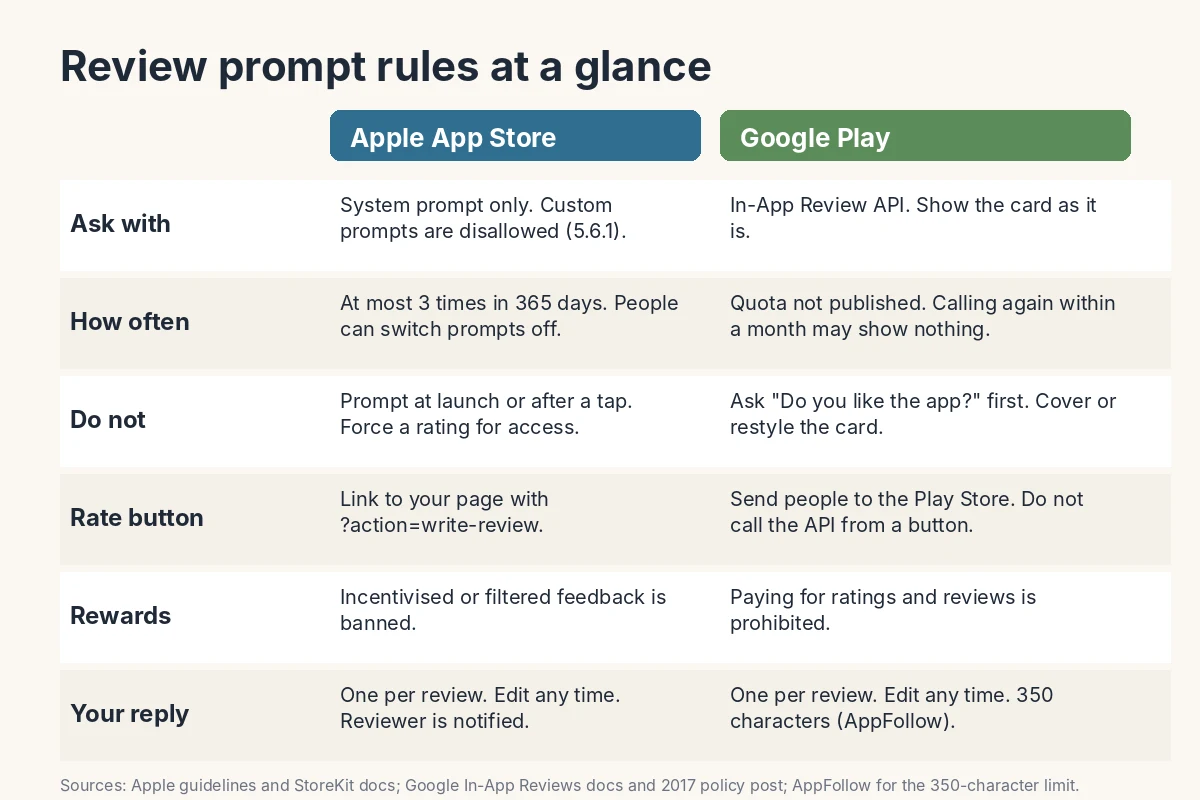
- Use Apple’s own API to prompt for reviews. Guideline 5.6.1 says Apple will “disallow custom review prompts.”
- The system shows the prompt to a person at most three times in 365 days, and people can switch prompts off for good.
- Do not show it at launch, and do not trigger it as the result of a tap. Ask at the end of something the person has just completed.
- Do not force anyone to rate or review in order to use the app. Guideline 3.2.2 forbids that.
- Manipulating reviews with paid, incentivized, filtered or fake feedback is not allowed (Guideline 3 intro and 5.6.3).
- To let people review on purpose, link to your App Store page with
?action=write-reviewat the end.
Google Play, in plain words
- Use the In-App Review API and show the card as it is. Do not resize it, restyle it or cover it.
- Do not ask a question first, such as “Do you like the app?” or “Would you give us five stars?”
- Do not put a button on your own screen that triggers the card. Google may have already used up the quota, and nothing would appear. Send those people to your Play Store page.
- Google does not publish the quota and can change it without notice. Calling the flow more than once in a short time, for example within a month, may show nothing.
- Offering money or goods for ratings and reviews is prohibited. Google’s 2017 policy post says incentivized ratings and reviews “have always been prohibited.”
When to ask: after a win
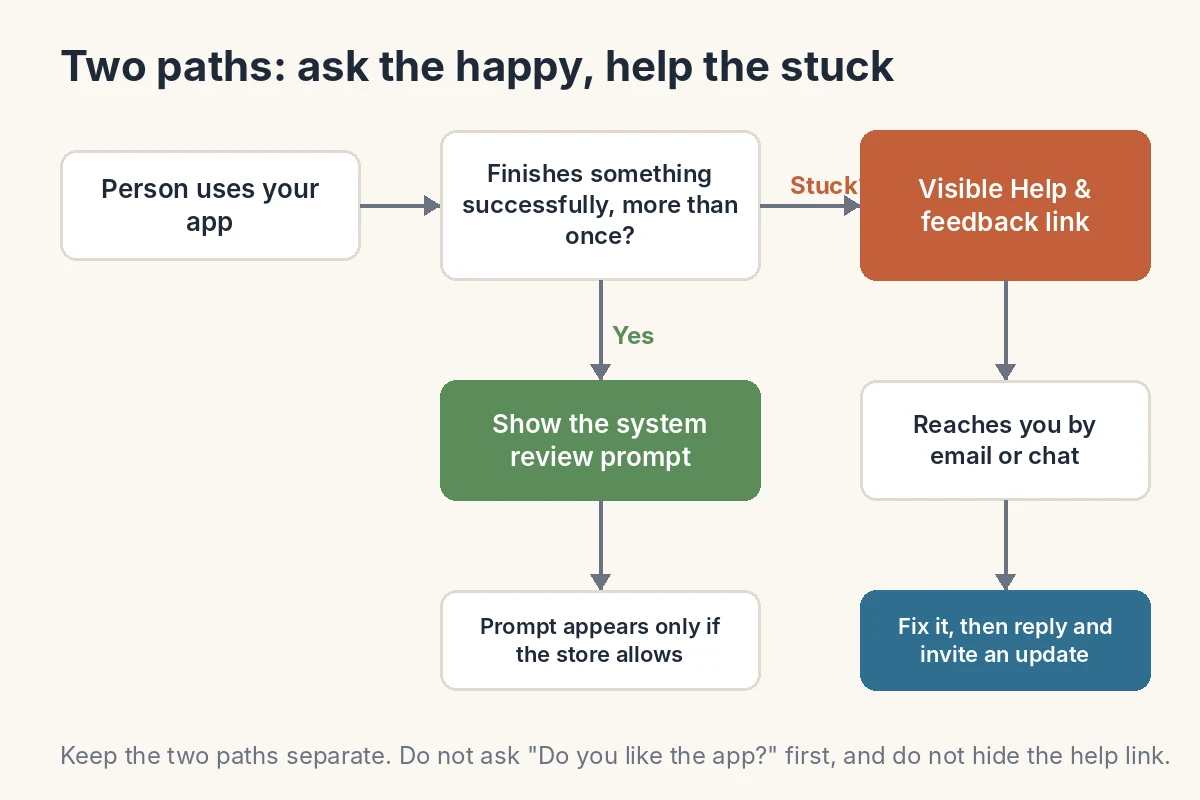
Apple’s own sample code gives the pattern. The app asks only after the person has finished a short task successfully four times, only if it has not already asked for this version of the app, and only after they have stayed on the “done” screen for a couple of seconds. Apple adds that these delays are useful because people are more experienced by then and give better feedback. Days, weeks or months may pass before the prompt appears.
Turn that into your own rule:
- Pick one success moment. A workout saved, a file exported, an order delivered, a lesson finished.
- Wait for repeat use. Apple’s example uses four completions. That number is arbitrary, so choose one that fits how often your users succeed.
- Stay quiet during problems. If the person has just hit an error, a paywall or a support chat, skip the prompt.
- Never ask during onboarding. RevenueCat’s blog reports that Apple has started rejecting apps that prompt this early under Guideline 5.6.3. That is RevenueCat’s account, not an Apple statement.
Because you only get a few prompts a year, treat each one like a limited resource.
Give unhappy people a door that is not a review
Some users are angry and just want help. If your only visible way to reach you is the store page, the store page is where they will go.
A “Help & feedback” link in Settings and on any error screen costs almost nothing. It reaches you first, and it does not touch the rating prompt at all.
One trap to avoid: asking “Do you like this app?” and then sending only the yes answers to the review prompt. Google’s rules ban questions before its card, and Apple disallows custom prompts. Filtering who sees the prompt is also what Apple calls out as “filtered” feedback in its guidelines. Keep the happy-path prompt and the help link separate. That is my reading of the rules, not a quote from either company.
For people who want to leave a review on purpose, add a plain “Rate this app” row in Settings. On iOS it opens your page with the write-review link. On Android, Google says to send people to the Play Store instead of calling the API from a button.
Why replying is worth your time (and what the data does not prove)
Three facts, each with its limits.
- An academic study found a positive pattern. Hassan and colleagues (2018) looked at 4.5 million reviews, with 126,686 developer responses, across 2,328 top free Google Play apps. They report that responding “may lead to an increase in the given rating.” The excerpt I read gave no percentage.
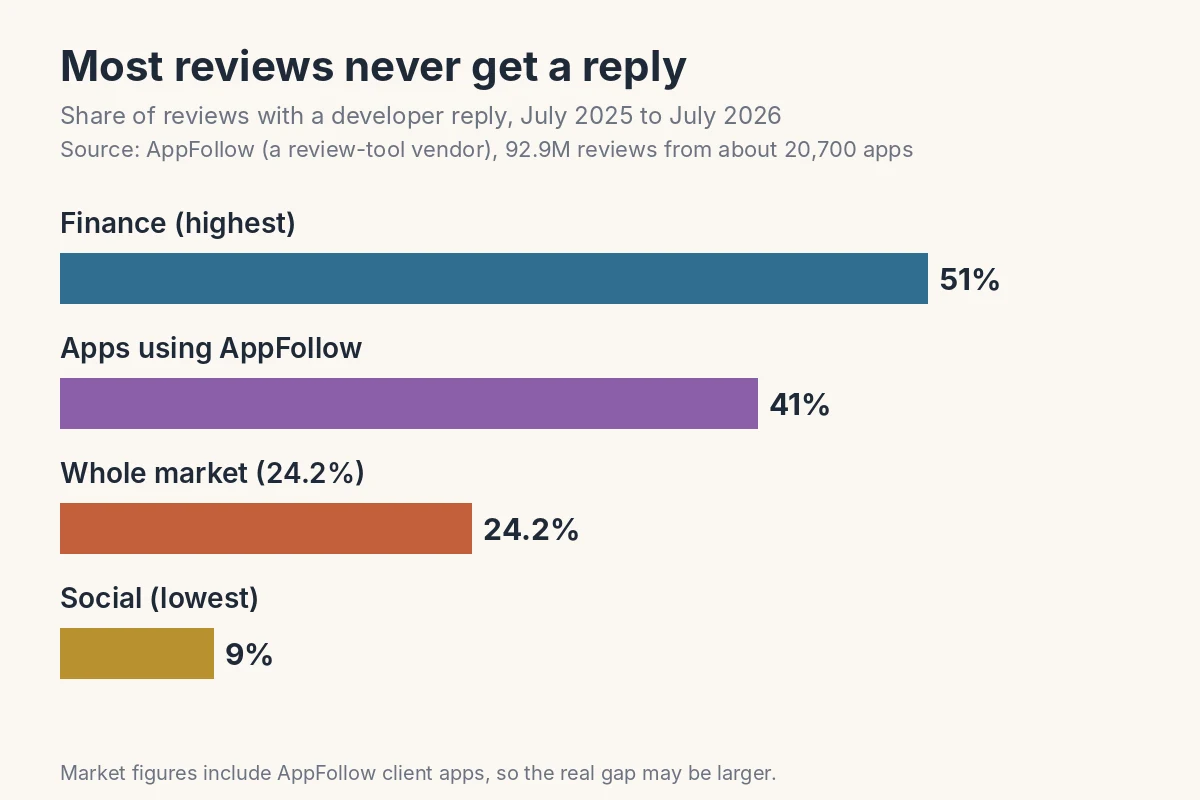
- Most apps barely reply. AppFollow, a review-management vendor, analysed 92.9 million reviews from about 20,700 apps between July 2025 and July 2026. Only 24.2% of reviews got a reply. Finance led at 51%. Social was lowest at 9%.
- The effect is uneven. In the same AppFollow data, the average change in a reviewer’s star rating within three months of a reply ranged from a gain of 1.39 points in Health & Sports to a drop of 0.58 in Education. AppFollow itself says a reply alone does not prove the change, because updates and fixes happen at the same time.
The honest conclusion: replying is cheap and often helps, but do not promise yourself a rating jump. Treat the reply as support, in public.
Also check the age of what you read. A widely repeated claim that one more star lifts conversion by 340% comes from a 2015 survey of 350 US smartphone owners, run by Apptentive, and measures what people say they would install, not what they did. I use it only as a reminder that ratings matter, not as a number to plan around.
How replies work on each store
App Store
- You can reply to any review, whatever its age, in App Store Connect. The role needed is Account Holder, Admin or Customer Support.
- Only one response shows per review. You can edit or delete it at any time, and edited replies carry a note that they were edited.
- Apple says the reviewer is notified when you respond and can update their review. You can also set up email alerts for when a reviewer edits a review you replied to.
- Replies can take up to 24 hours to appear.
- Apple’s rules for tone: be concise, respectful and specific. No personal information, marketing language or spam.
- Billing and download problems: point the person to Apple Support. Offensive or spam reviews: use Report a Concern instead of replying.
Google Play
- One public reply per review, which you can edit or delete. You need the reply permission in Play Console.
- AppFollow’s guide says replies are limited to 350 characters and appear within about 5 to 10 minutes, and that Google emails and notifies the reviewer. These details come from that vendor, not from Google, so confirm them in Play Console.
- Keep replies free of personal details. Share a support email, not a person’s data.
What to say: a four-part reply
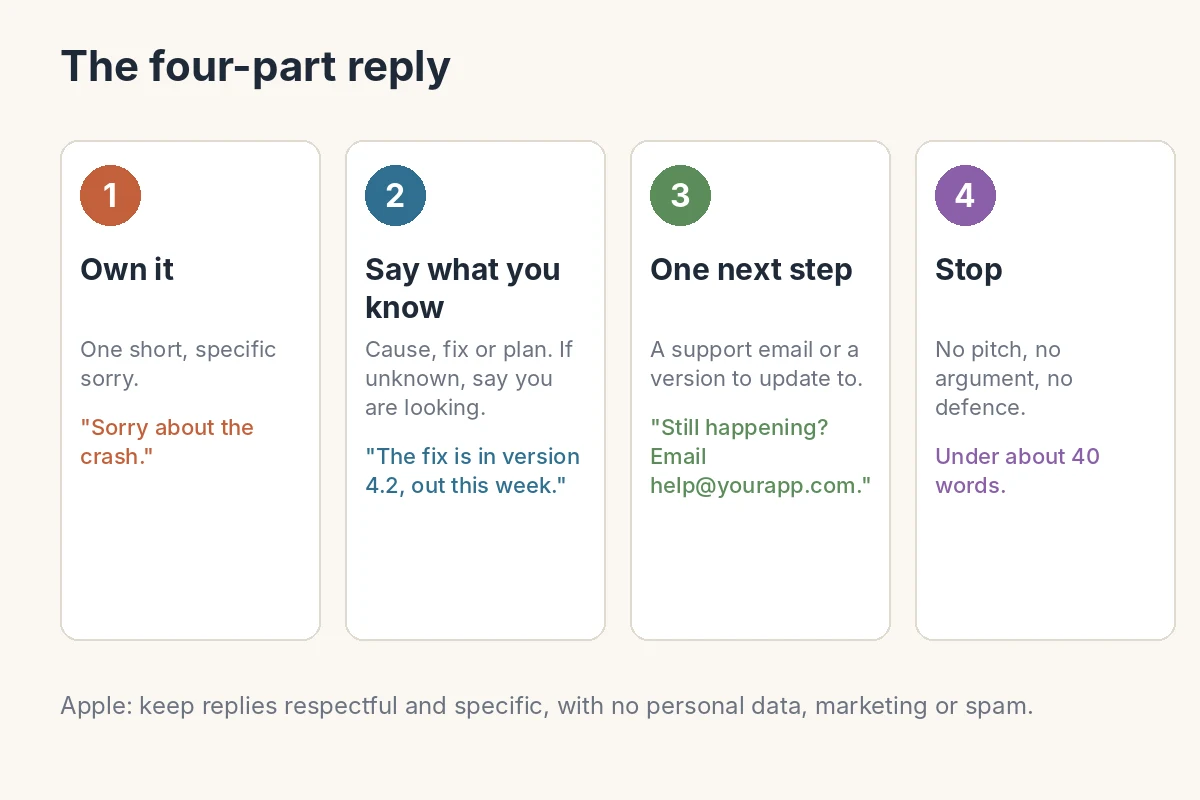
Every good reply to a bad review does four things in about 40 words.
- Own it. One short, genuine sorry, aimed at the specific problem.
- Say what you know. The cause, the fix or the plan. If you do not know, say you are looking.
- Give one next step. A support email, or the version number to update to.
- Stop. No sales pitch, no argument, no defense.
Here are five replies, each under 190 characters. Swap in your own details, and do not paste the same text on every review. Apple recommends personalizing replies where you can.
1. A bug or crash
Sorry about the crash. We found the cause and the fix is in version 4.2, out this week. If it still happens after you update, email help@yourapp.com and we will work through it with you.
2. A missing feature
Thanks for the clear idea. Dark mode for the widget is on our list but has no date yet. We will say so here when it ships. More detail is welcome at help@yourapp.com.
3. A billing complaint
Sorry about the charge. Apple handles billing, so please use Report a Problem from your receipt email. If anything inside the app is wrong, email help@yourapp.com and we will fix it.
4. A vague “this app is bad”
Sorry it let you down. What went wrong? Tell us at help@yourapp.com, or reply with the screen where it happened, and we will look into it.
5. A fair, angry complaint
That is a fair complaint. Sync should never lose notes. We fixed the cause in version 4.2. If anything is still missing, email help@yourapp.com and we will help you recover it.
For abusive or spam reviews, do not reply. Report them to the store.
Who to reply to first
If you cannot answer everything, Apple’s advice is to start with the lowest star ratings and the reviews that mention technical problems with your current version. Acknowledge the problem and say you are working on it.
After you ship a fix, do two things Apple suggests: mention it in the release notes, and reply to the older reviews that raised it. Apple calls this an effective way to re-engage users who were unhappy. Also reply promptly to new and updated reviews after a big release, when people are most willing to talk.
AppFollow’s data suggests speed matters, and it cites 72 hours as the point after which a reply is less likely to change a rating. That is vendor guidance, not a hard rule. Its data also shows how slow most teams are: average reply times ran from 43 hours in finance to 204 hours in education.
Five mistakes that cost you reviews
- Prompting at launch or onboarding. It annoys people and may break Apple’s guidance.
- Asking “Do you like the app?” first. Google bans the pre-question, and it looks like gating.
- Paying or rewarding for reviews. Both stores ban it, and the penalty can be removal.
- Copy-paste replies with a sales link. Apple tells you to keep marketing out of replies.
- Arguing in public. Apple’s Code of Conduct asks you to treat people with respect in review replies, and angry threads rarely change minds.
A 30-day plan
- Week 1: Add a visible Help link and a Rate this app row in Settings. Choose your one success moment for the prompt.
- Week 2: Turn on the system prompt after that moment, with a repeat-use rule. Set up email alerts for edited reviews.
- Week 3: Reply to every one- and two-star review from the last 30 days, using the templates above.
- Week 4: Ship your top fix, mention it in the release notes, and reply to the reviews that asked for it.
Then look at your reply rate and rating after 30 days and compare them with where you started. But remember the plan is my suggestion, not a measured method.