
You need App Store screenshots that look good, fit Apple’s sizes and do not cost a designer’s fee. Several tools can do that. Picking one should take ten minutes, not an afternoon of reading “best of” lists.
Here is the catch with those lists. Nearly every “best generator” page is published by a company that sells one. For example, RapidNative’s list puts its own product first, and Screenhance’s list includes its own tool and says its comparison is based on “documented capabilities, not a controlled speed test.” Prices on these pages also disagree with each other.
How this guide was made: I did not install or run these tools, so I cannot tell you which one “feels” best. I compared them using each company’s own pricing page where it could be read, Apple’s own documentation for the rules, and I say clearly where a figure could not be confirmed. Prices were checked in November 2026 and change often, so confirm before you pay.
Start with Apple’s rules, not the tool
A generator is only useful if its output passes. These are the rules that matter, all from Apple’s pages.
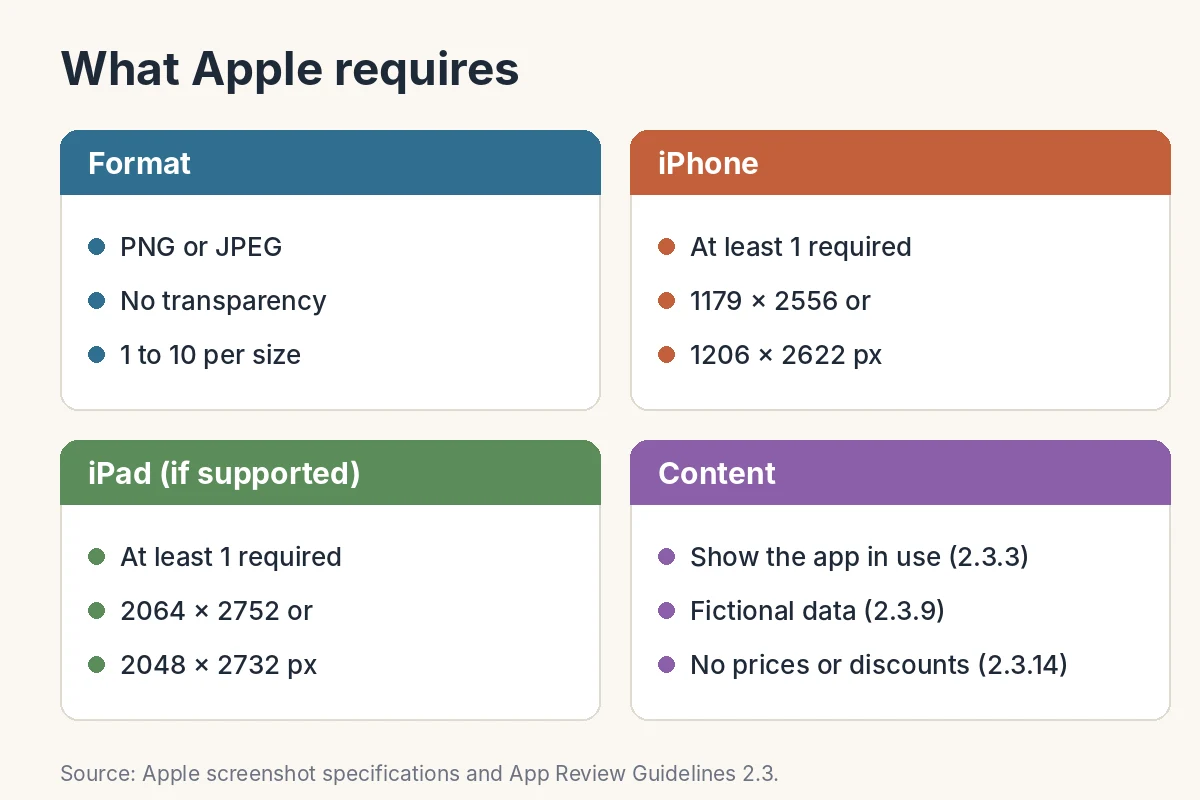
Sizes and formats (screenshot specifications)
- You need at least one screenshot and can add up to 10 per device size, as PNG or JPEG with no transparency.
- For iPhone, at least one screenshot for “iPhone with Dynamic Island (medium display)”: 1179 x 2556 or 1206 x 2622 pixels, portrait or landscape.
- If your app runs on iPad, at least one for the 13-inch display: 2064 x 2752 or 2048 x 2732 pixels.
- If your design works across sizes, Apple says you can upload the largest required resolution and App Store Connect will scale it down.
Content (App Review Guidelines, section 2.3)
- 2.3.3: screenshots “should show the app in use, and not merely the title art, login page, or splash screen.” Text and image overlays are allowed.
- 2.3 intro: screenshots must “accurately reflect the app’s core experience” and stay up to date with new versions.
- 2.3.9: you must have the rights to everything in the image, and should use fictional account data, not a real person’s.
- 2.3.14: no unverifiable product claims, no references to other apps meant to mislead, and no specific or discounted pricing.
- 2.3.8: icons, screenshots and previews should suit a 4+ age rating, even if your app is rated higher.
So a good generator must export the right pixel sizes and let you put real app screens in a frame with short text. Everything else is a nice extra.
The short list: which tool for which job
| If you want… | Look at |
|---|---|
| The cheapest possible start, and you can do some design work | Figma free plan, or a free template |
| A template-based editor with store sizes built in | AppScreens, Screenshots.pro, AppLaunchpad |
| One-click upload to App Store Connect and Google Play | AppScreens (paid plans) |
| 3D device angles and 3D mockups | Screenshots.pro (Standard plan), Previewed |
| Automated screenshots in your build pipeline | fastlane frameit (free, open source) |
| Screenshots in many languages | AppScreens (80+ locales on paid plans) |
The tools, one by one
Each entry says what is confirmed from the company’s own page and what is not. “Unverified” means I could only find it on a third-party page, often a competitor’s.
AppScreens
Best for: teams that want one tool from design to upload, and many languages.
Confirmed on the official pricing page:
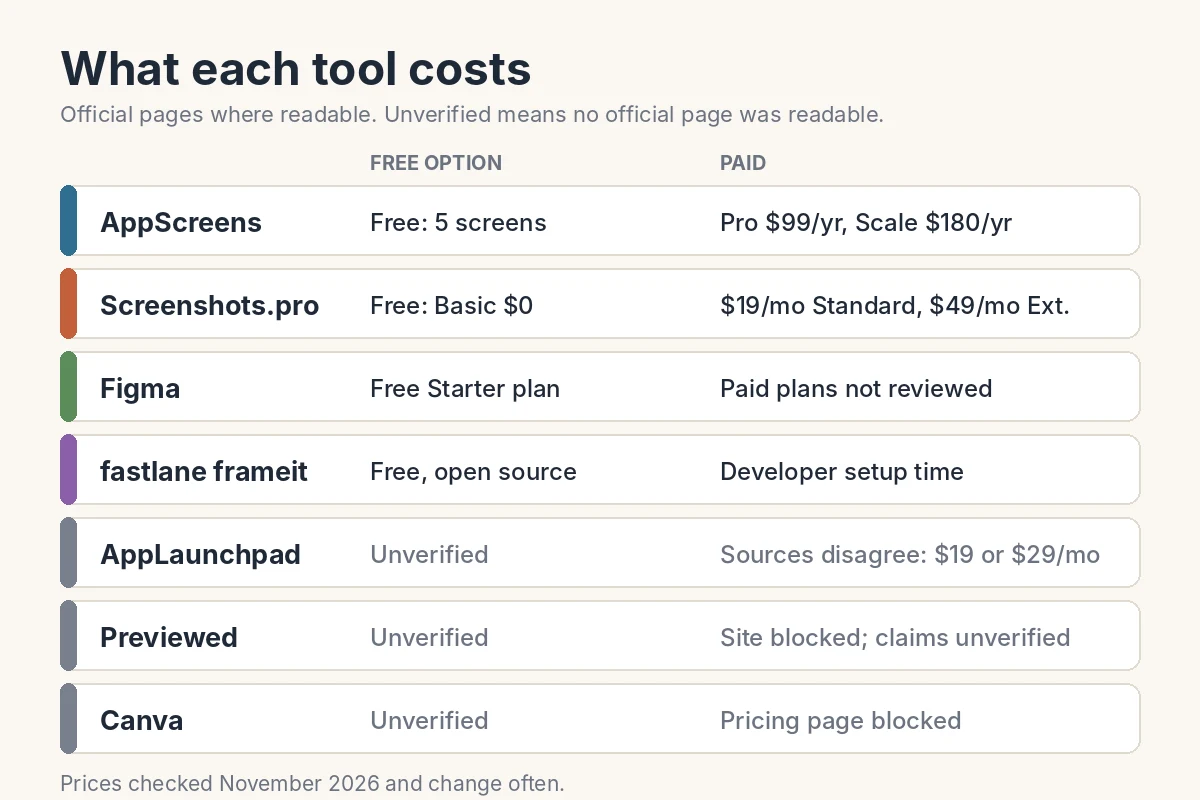
- Free ($0): 1 project, 1 app, up to 5 screens, default language only, manual export, starter templates.
- Pro ($99 a year, shown as $8.25 a month billed annually): 50 projects, 10 apps, up to 10 screens, 80+ locales, 150+ template sets, one-click upload to App Store Connect and Google Play, advanced 3D frames.
- Scale ($180 a year): unlimited projects and apps, up to 25 screens.
Check before you rely on it: the page says you can “preview Pro features with watermarks” on the free plan but does not say whether free exports carry a watermark. A separate monthly price is not listed.
Screenshots.pro
Best for: quick template-based sets and 3D angles.
Confirmed on the official pricing page:
- Basic ($0 forever): the editor, all devices, all pre-made templates and smart export for all sizes.
- Standard ($19 a month): adds 3D angles, template storage, custom fonts, localization and a standard license.
- Extended ($49 a month): adds API access and the right to charge end clients.
Check before you rely on it: the page does not state the free plan’s watermark or attribution rules. AppScreens’ own comparison post says free users must credit the tool, but AppScreens sells a competitor, and I could not confirm that on Screenshots.pro. That post also lists a much higher price than the official page, so ignore it.
AppLaunchpad
Best for: a simple, template-first editor.
What I could confirm: its site exists and offers plans, but I could not read its pricing page. A blog post on AppLaunchpad’s own domain, which does not name its publisher, describes a limited free trial and a Pro plan, but gives $19 a month in one place and $29 a month in another. Treat the price as unknown until you check the site.
Previewed
Best for: 3D mockups and device animations, if the third-party description holds.
What I could confirm: nothing from the official site, which blocked my access. RapidNative, a competitor, lists a $9.99 one-time Plus plan, a $19 a month Pro plan billed yearly ($228) and a free tier with 720p exports under a Creative Commons licence that it says is not meant for commercial store listings. All of that is unverified, so read Previewed’s own terms before using free exports in a store listing.
Figma (free plan)
Best for: full design control at no cost, if you are comfortable designing.
Confirmed on Figma’s pricing page: the free Starter plan includes unlimited drafts and UI kits and templates. The page does not state file limits for it, so check the current limits. Everything is manual: you set the artboard sizes, write the text and export every size yourself. Community templates can speed this up. Check each template’s licence.
Canva
Best for: people who already use Canva and want something familiar.
What I could confirm: a third-party list says there is a free plan and that you set up each store size yourself. I could not read Canva’s pricing page. Premium assets need license checks.
fastlane frameit (free)
Best for: developers who want screenshots rebuilt automatically on every release.
Confirmed in the official docs: frameit is free and open source. It puts device frames around screenshots from one command, supports iPhone, iPad, Mac and some Android devices, and takes titles and backgrounds from a configuration file. Without a title and background, the output stays at full resolution and, in the docs’ words, is meant for websites, print and email, not the App Store. It takes developer setup time.
How to choose in three questions
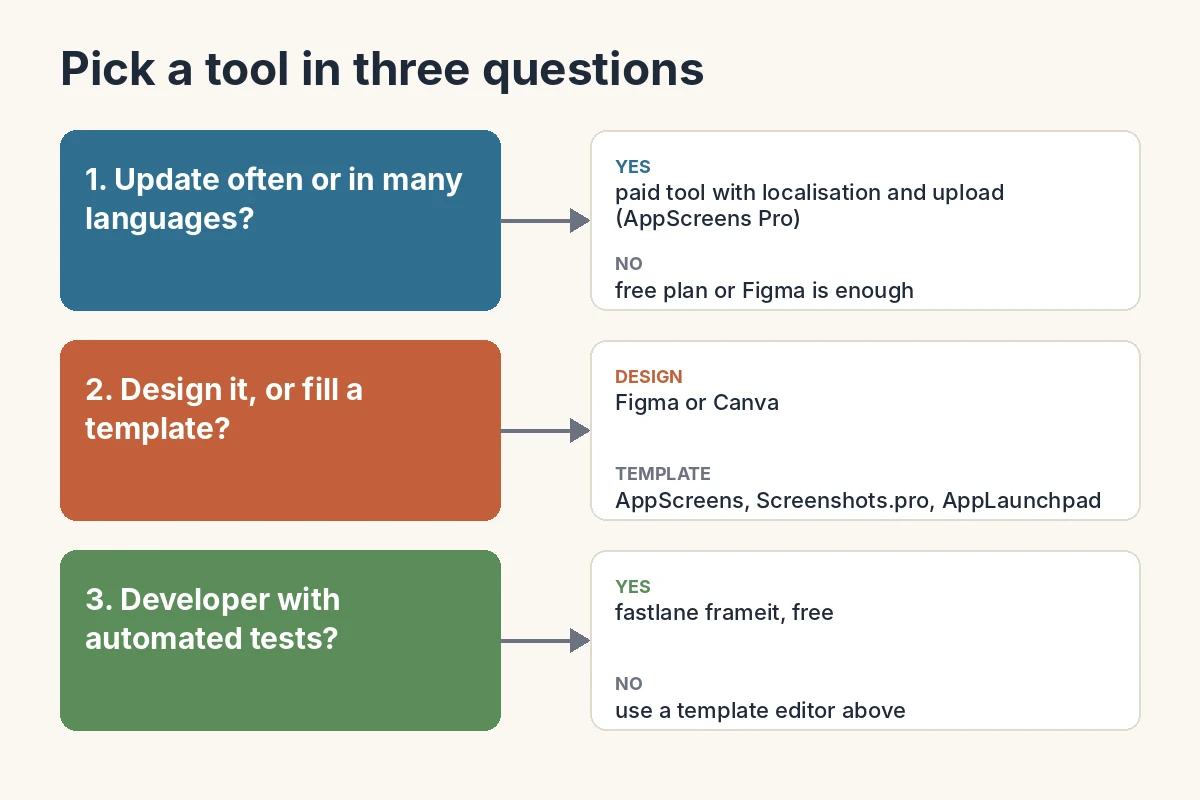
- Will you update screenshots often, or in many languages? If yes, pay for a tool with localization and store upload, such as AppScreens Pro. If you update once or twice a year in one language, a free plan or Figma is enough.
- Do you want to design, or to fill in a template? Figma and Canva give you control but cost time. AppScreens, Screenshots.pro and AppLaunchpad give you a template and a head start.
- Are you a developer who already has automated tests? Then fastlane can regenerate and frame screenshots for free on every release.
A free plan is fine for your first listing, as long as you confirm two things before you export: whether free exports carry a watermark or need credit, and whether the license allows commercial use on a store page.
A simple screenshot set that follows the rules
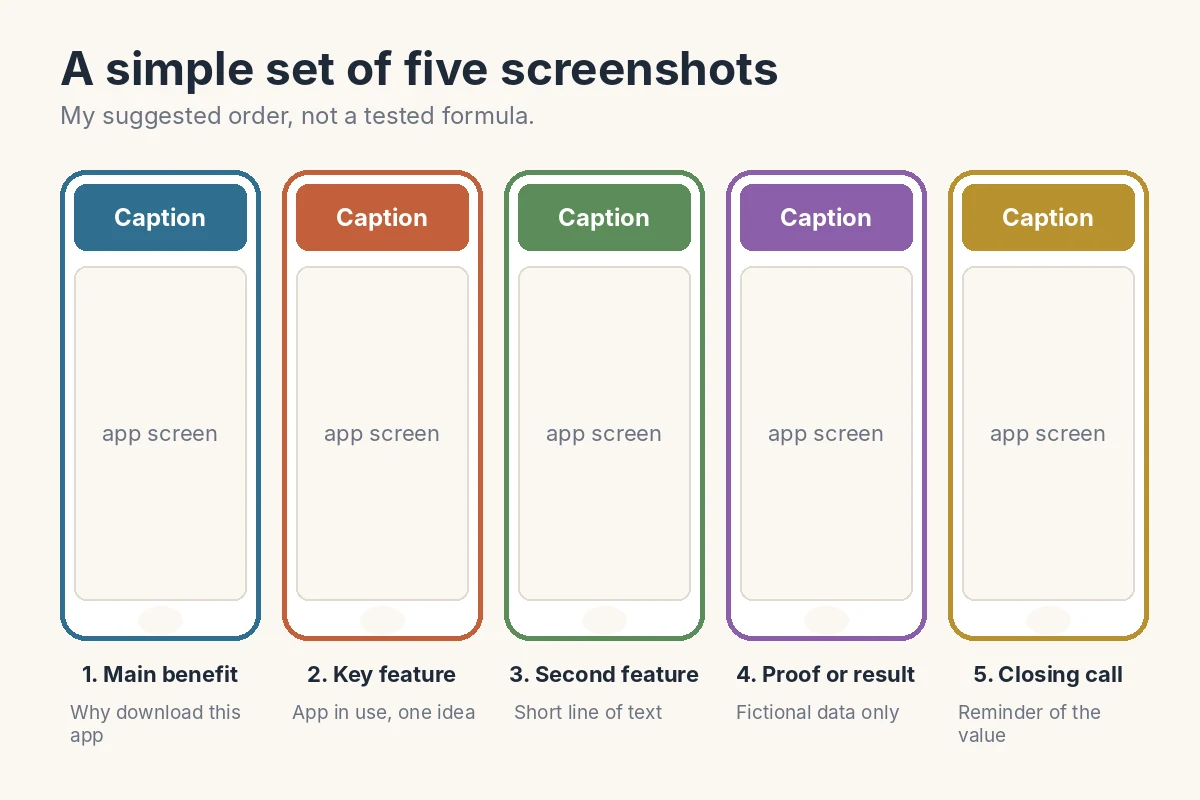
This is my advice, not a tested formula.
- Show the app in use. Apple’s guideline 2.3.3 asks for this. A login page or splash screen alone is not enough.
- One idea per screenshot, with a short line of text on top, so it is readable on a small screen.
- Lead with the main benefit. Put the screen that explains why someone should download first.
- Use fictional data. Apple asks for it in guideline 2.3.9, and it avoids showing a real person’s details.
- Skip prices and discounts. Guideline 2.3.14 says creative assets should not include specific or discounted pricing.
- Refresh after big updates. Apple asks that screenshots stay accurate as the app changes.
Five mistakes to avoid
- Trusting a ranked list from a vendor. Check the publisher. If it sells a tool on the list, read it as marketing.
- Paying before you read the free plan’s terms. Watermarks, attribution and license limits are where free plans differ.
- Exporting only one size. Apple lets you scale down from the largest required size, but check how your tool resizes and how the result looks.
- Showing features the app does not have. Guideline 2.3 requires screenshots to reflect the core experience.
- Using real people’s data. Use fictional accounts.
What to do next
Pick one tool from the short list, make your first set of five screenshots, and export it at Apple’s required sizes. Upload it to a test build in App Store Connect and look at it on a real phone before you submit. If you outgrow the free plan, upgrade then.

Pingback: 10 RevenueCat Alternatives for Bootstrapped Founders